Bulk File Renaming Online: No Uploads Required
The Hexocto Batch Renamer is a professional-grade utility that allows you to rename thousands of files instantly directly in your browser. It is ready to use out of the box with no installation required, allowing you to start organizing your files in seconds. Unlike traditional online tools, it uses the modern File System Access API to modify files on your disk without uploading them anywhere. This makes it the fastest and most private online batch file renamer available.
Why Use an Online Batch Renamer?
If you've ever struggled with a messy folder of photos or documents, you know how tedious manual renaming is. Hexocto provides a safe, no-install alternative to desktop software.
- Rename files on Mac and Windows with the same interface.
- Privacy-First: Your files never leave your computer.
- Instant Preview: See exactly what the new names will look like before you commit.
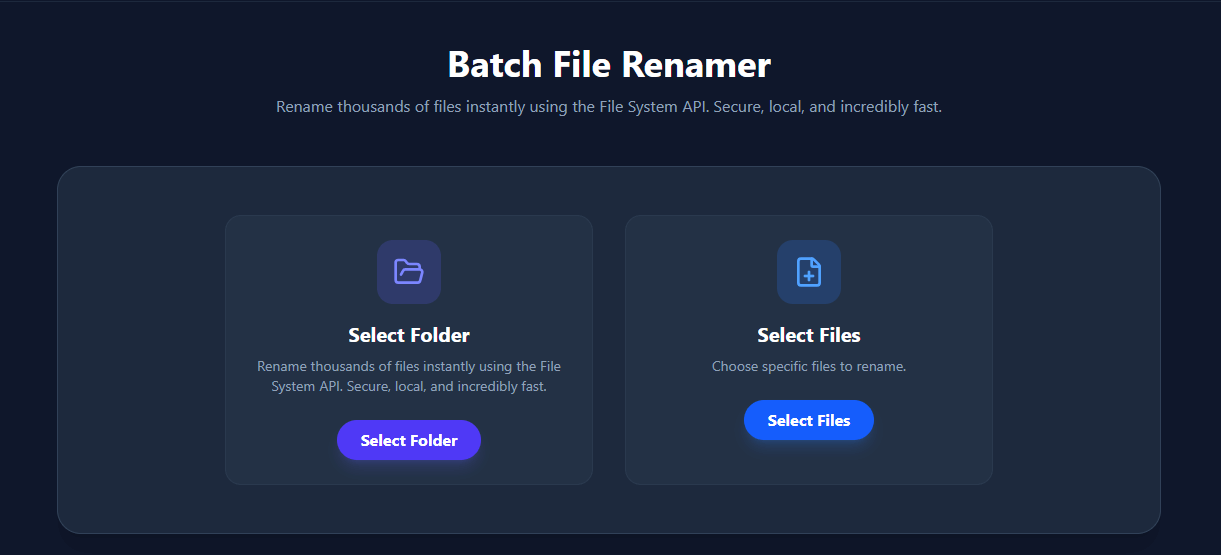
1. Select Files Securely
You have two options to start:
- Select Folder: Opens a directory picker. This allows the tool to load all valid files inside a folder automatically.
- Select Files: Opens a file picker where you can manually select multiple specific files.
Note: This feature works best on Desktop Chrome, Edge, and Opera.
2. Building the Name Format
The core of the renamer is the Token Builder. You construct the new filename by dragging and dropping blocks:
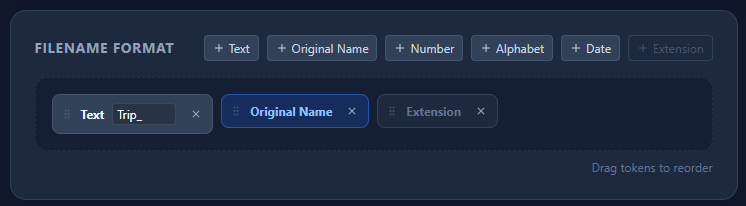
- Original Name: Keeps the current filename.
- Text: Adds custom static text (e.g., "Holiday_Photos_").
- Number: Adds an auto-incrementing counter (001, 002, 003). You can customize the starting number and padding (e.g., 3 digits).
- Date: Adds a timestamp. You can use the file's modification date or a custom date.
- Alphabet: Adds incrementing letters (a, b, c... aa, ab).
- Extension: Don't forget this! It keeps the file type (e.g., .jpg).
Example Recipe:
To rename camera photos to Trip_001.jpg:
- Add Text token -> set value to "Trip_"
- Add Number token -> set padding to 3
- Add Extension token
3. Advanced Settings
- Replace Text: Search for a specific string in the original filename and replace it with something else (or remove it).
- Sort Order: Determine which files get renamed first (e.g., Oldest to Newest). This affects the numbering order.
4. Preview and Execute
The table at the bottom shows a live preview of the New Name. Check this carefully!
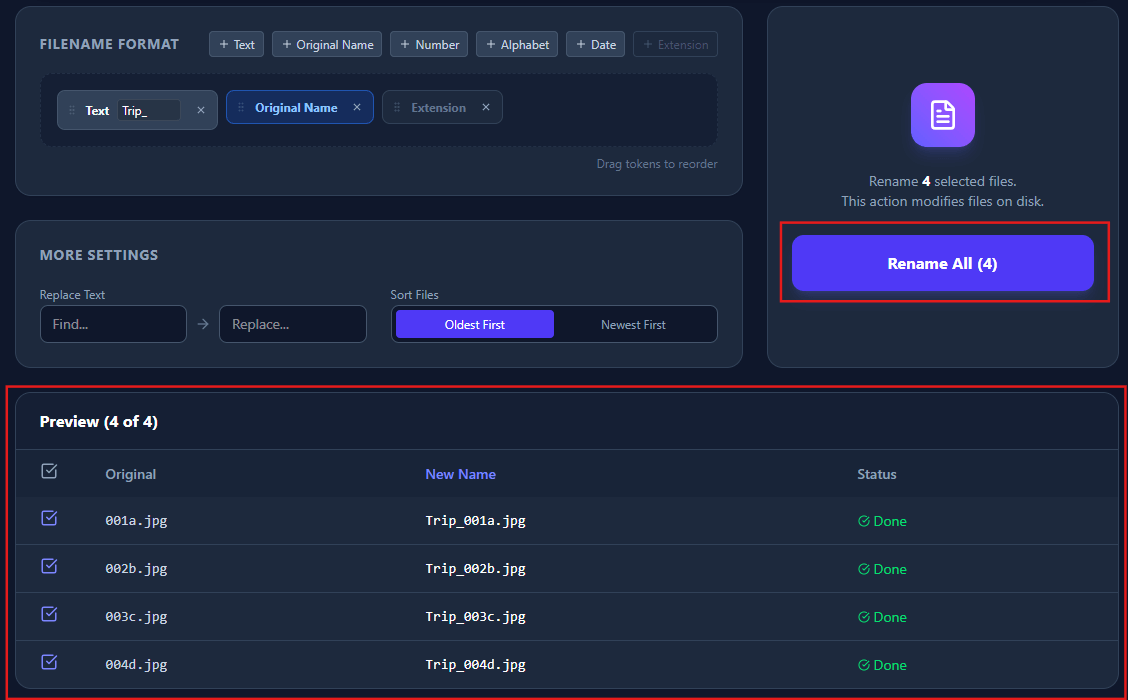
- Use the checkboxes to exclude specific files if needed.
- When ready, click Rename All.
- The browser will ask for permission to save changes to the disk.
Warning: This operation modifies files directly on your hard drive. While safe, we always recommend having a backup of important data.